You can link a pull request (PR) to an issue in a Git repository to show that a fix is in progress and to automatically close the issue after merging pull requests.
Keypup uses context inference and link detection to automatically enrich your datasets, populate new fields and simplify your reporting. Linking pull requests to issues in your development tools (e.g., GitHub, GitLab, Bitbucket) using auto-closing keywords allows Keypup and third-party tools to access and expound the information.
How Linking Pull Requests to Issues Benefits Your Reporting in Keypup
Linking issues to pull requests allows Keypup to populate and improve the following fields:
Issues & Pull Requests > Due on: When a pull request is linked to one or more issues, Keypup automatically infers the due date by taking the soonest of all due dates across the pull request and its related issue(s).
Issues & Pull Requests > Resolution State: This field is only applicable to issues. It infers the implementation status of the issue by looking at the associated pull requests. The field can have the following values:
None: The issue has no attached pull requests. It is not being implemented.
In progress: The issue has at least one open pull request attached to it.
Implemented: All attached pull requests are merged or closed.
These two fields can be used to refine your metrics and/or drill down on specific data (e.g., retrieve the list of overdue issues that are not being currently resolved by a pull request).
Moreover, your links between issues and pull requests are automatically grouped in your card insights. Each card is populated with the references of issues and pull requests, cross-app comments, due dates, global timeline, etc. This way, you have a single point of entry to see everything related to your linked issues and pull requests, and you can even track your average pull request size.
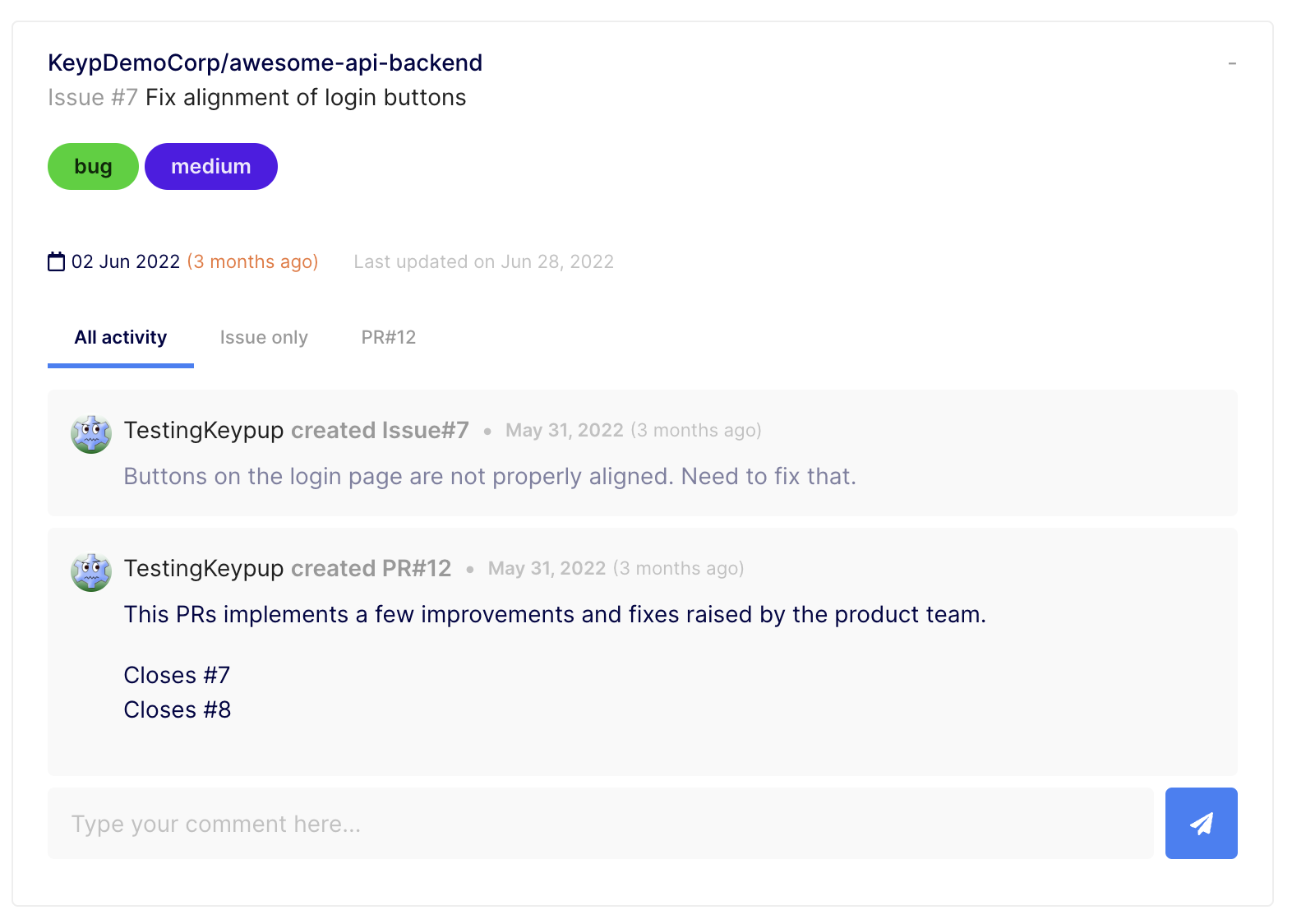
Linking Issues to Pull Requests Using GitHub
Option 1: Via the pull request title
To link a Jira issue such as PROJ-123 or a GitHub issue such as my-org/my-project#475 to a PR, you can set your pull request title to:
- [PROJ-123] Resolve problem with login button
- [my-org/my-project#475] Resolve problem with login button
Option 2: Via the pull request body or a commit message
To link issues to PRs using a body or commit message, the reference or URL of your issue must be prefixed by an auto-closing keyword, such as “fixes,” “resolves” or “closes.” For instance:
Linking Issues to Merge Requests (MR) Using GitLab
Option 1: Via the merge request title
To link a Jira issue such as PROJ-123 or a GitLab issue such as my-org/my-project#475 to a MR, you can set your merge request title to:
- [PROJ-123] Resolve problem with login button
- [my-org/my-project#475] Resolve problem with login button
Option 2: Via the merge request body or a commit message
To link issues to merge requests via a MR body or commit message, the reference or URL of your issue must be prefixed by an auto-closing keyword, such as “fixes,” “resolves” or “closes.” For instance:
- This MR updates the handler attached to the login button. Fixes PROJ-123.
- Fix login button. Closes https://myorg.atlassian.net/browse/PROJ-123.
- Fix the login. Closes my-org/my-project#475.
- This is a fix. Resolves https://gitlab.com/my-org/my-project#475.
Linking Issues to Pull Requests Using Bitbucket
Option 1: Via the pull request title
To link a Jira issue such as PROJ-123 or a BitBucket issue such as my-org/my-project#475 to a PR, you can set your pull request title to:
- [PROJ-123] Resolve problem with login button
- [my-org/my-project#475] Resolve problem with login button
Option 2: Via the pull request body or a commit message
To link issues to pull requests using a PR body or commit message, the reference or URL of your issue must be prefixed by an auto-closing keyword, such as “fixes,” “resolves” or “closes.” For instance: