How-To Connect and Disconnect Projects and Repos using Keypup

In this quick how-to tutorial, you will learn how to connect or disconnect your projects and repos from Keypup Development Intelligence solution.

Thomas Williams
Thomas Williams LinkedIn
• 3 min read
How-To Connect and Disconnect Projects and Repos using Keypup

To unleash Keypup’s full potential, we recommend connecting all active projects and repos to the platform during the trial period. This way, you will be able to compare projects against each other and see which ones are consuming most of your time. Linking this info to the most lucrative features / products, you will be able to gain insights on what has high value for you and how to manage time for the less lucrative yet needed ones.

At Keypup we want to make sure you are always in control of your development data and their access. For this reason we ask you to explicitly tell us which project(s) / repo(s) you wish to connect to Keypup.

Note that we do not fetch any code from your repositories. Instead, we harness all kinds of metadata so we can build comprehensive software development datasets.

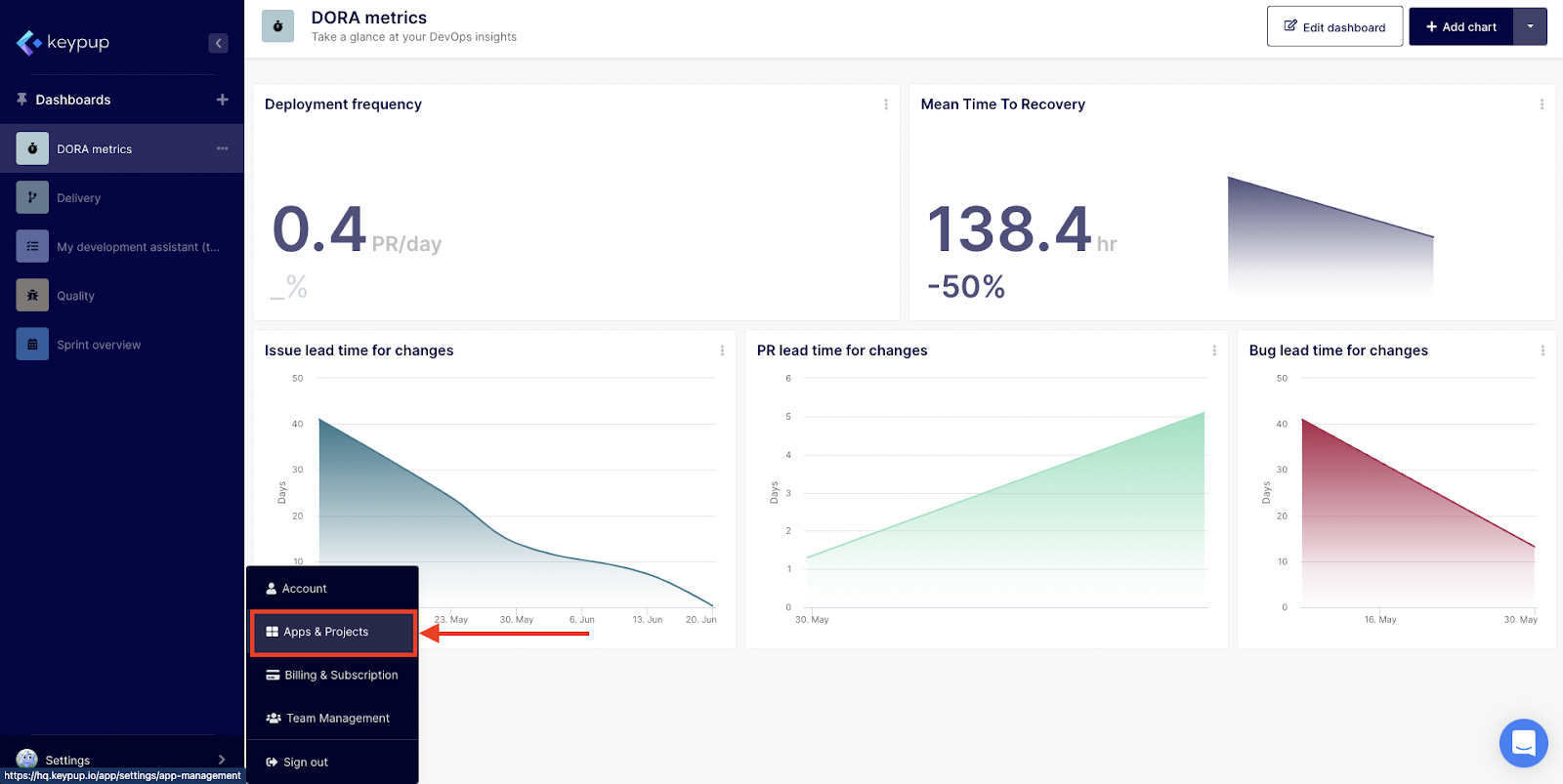
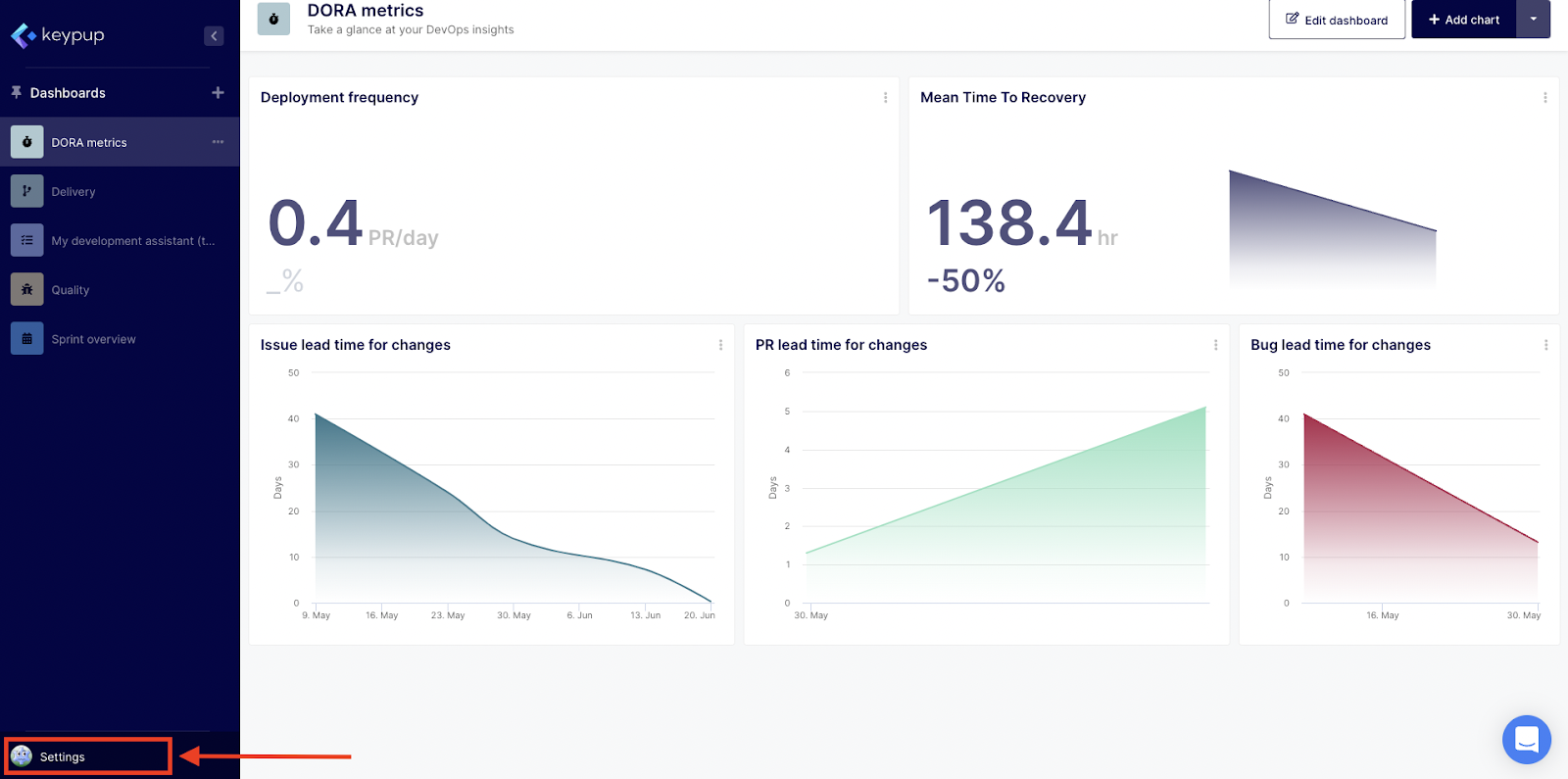
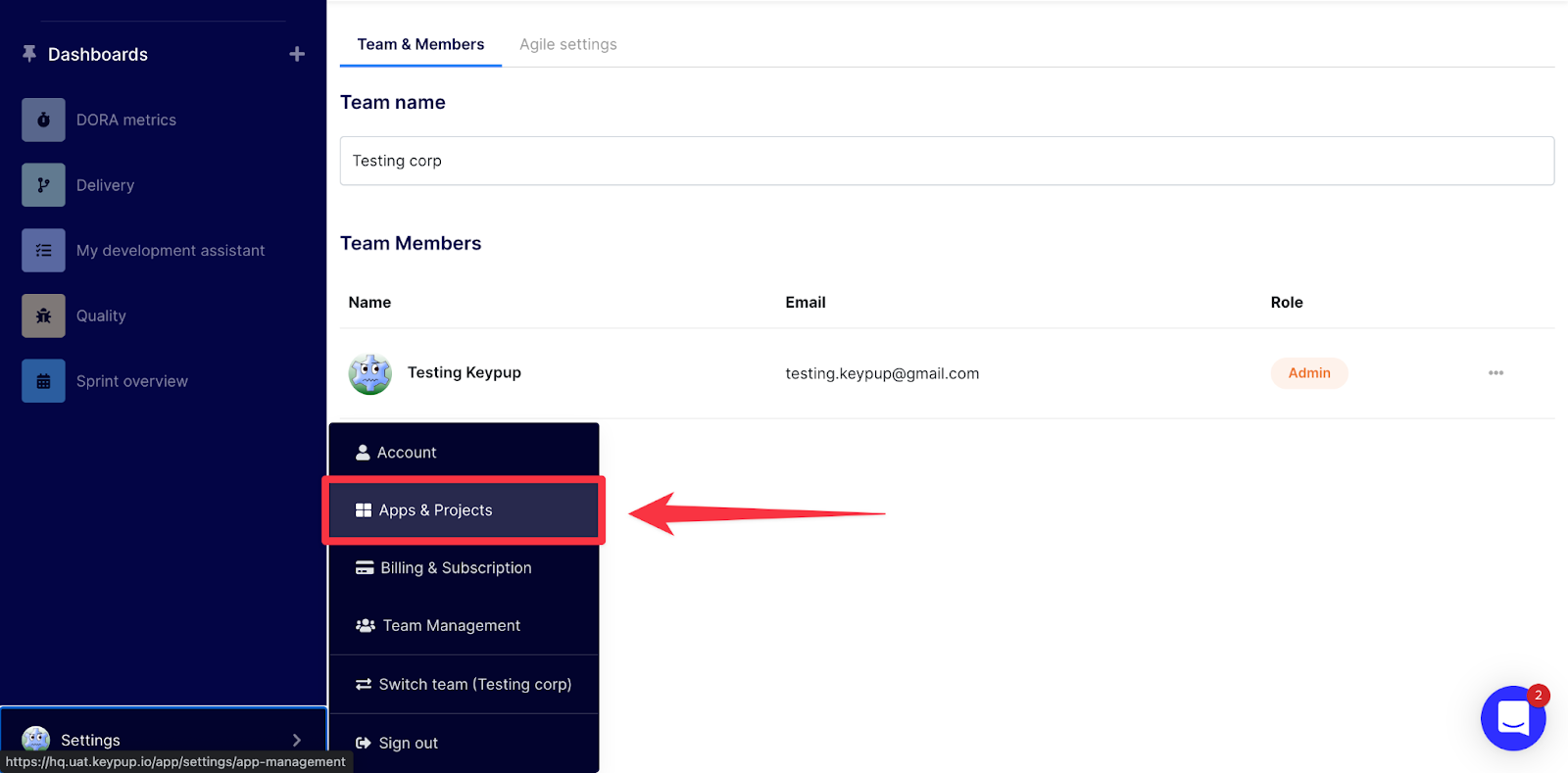
To connect a new project / repository, go to the Settings at the bottom left section of your screen in the navigation menu.
Image

Then, select Apps & Projects.

Image

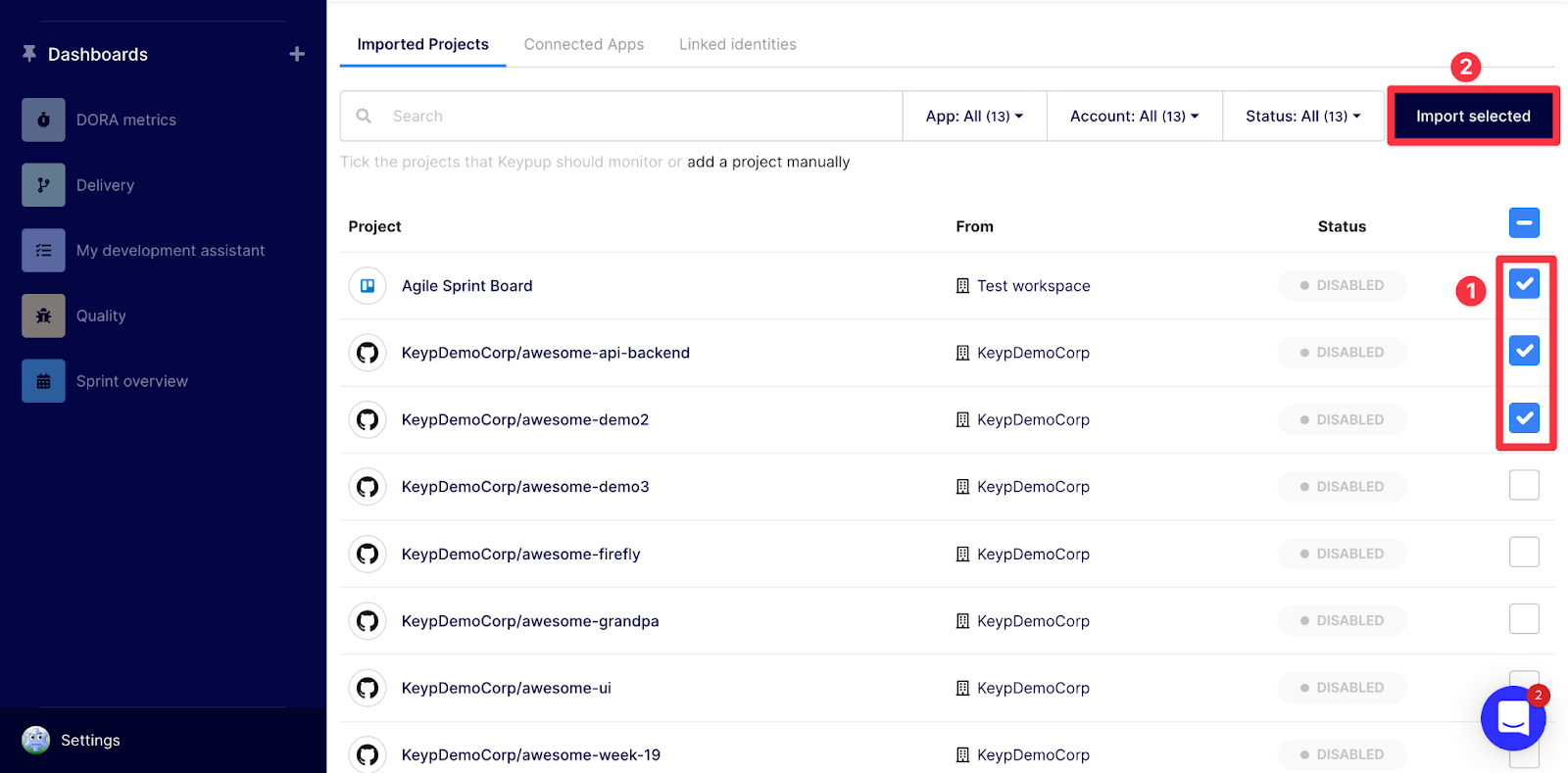
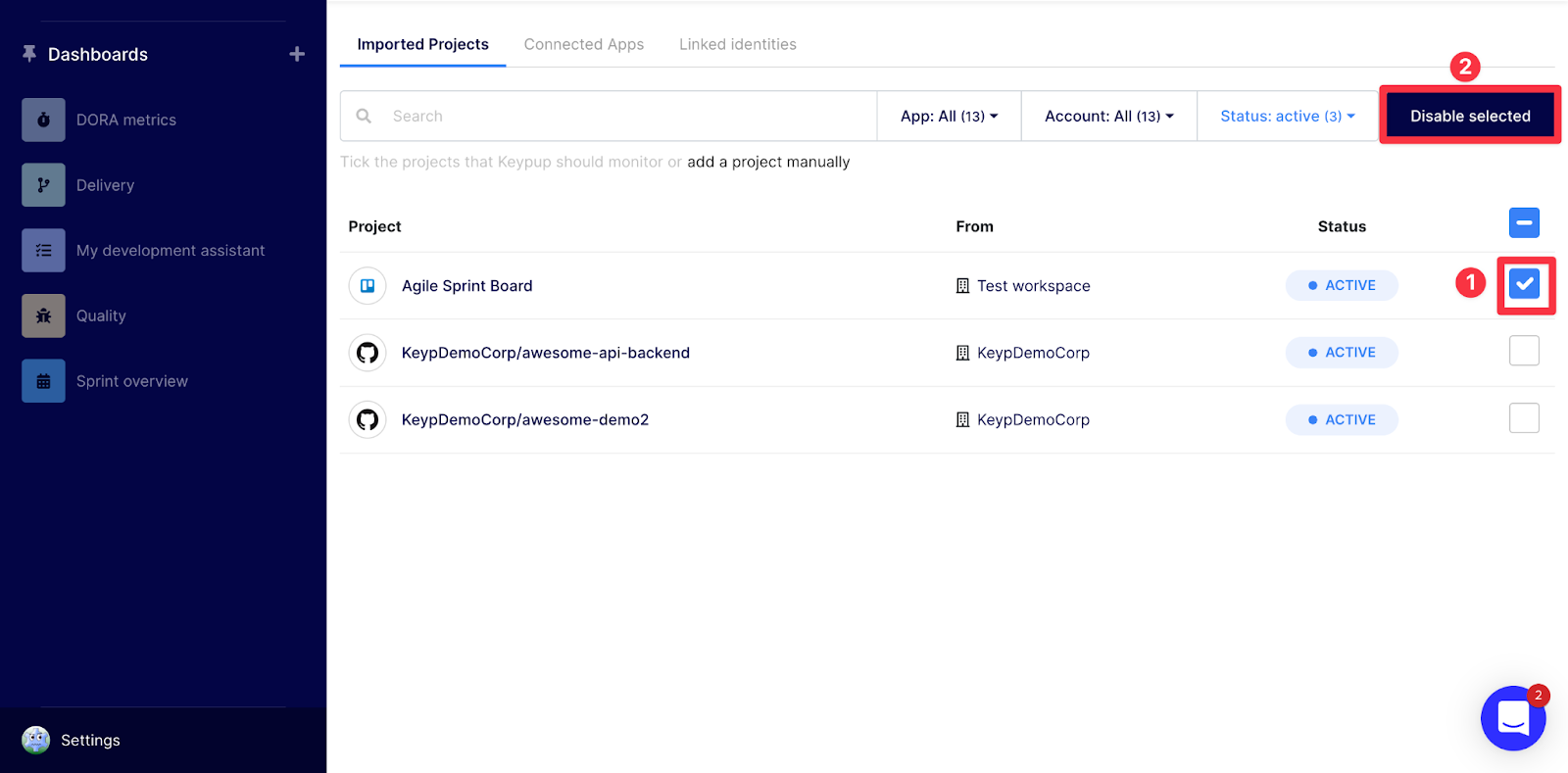
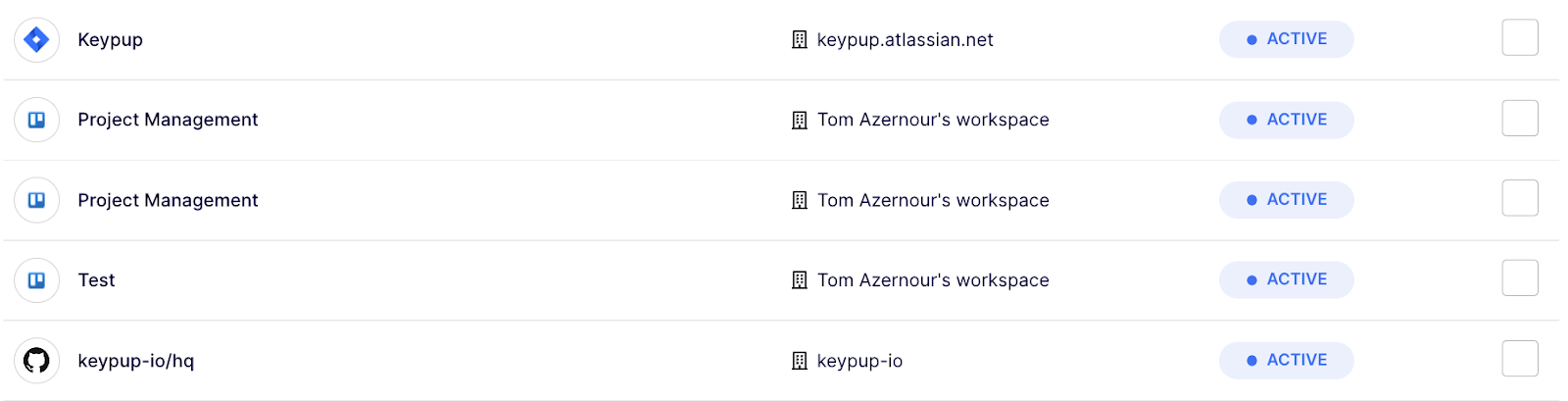
This will open automatically the Imported projects tab which will show you which projects/repositories are active and which ones are disabled. To connect, select the project(s) / repos by ticking the boxes and setting them as active clicking the** Import selected** button. To disconnect them, select them by ticking the boxes and set them as disabled selecting the Disable selected button.

Connecting projects / repos
Image

Image

Disabling projects / repos

Image

Note: you can search a project by name using the search bar, or see all projects /repos available from the connected apps (active or not) by selecting All from the status filter.

That's it! After a short period of time - depending on the volume of data contained in your projects / repos - you will see them set as active.
Image

Once your projects/repos are connected, you can build your dashboards / reports and insights through Keypup builder interfaces).

Note: you will be guided through all these steps on your first sign-up during your onboarding.

Any recommendations or tips? Ping us through the chat or contact us using this form.

Ready to Transform Your Analytics?

Join teams already using AI to make data-driven decisions faster than ever.

Most Recent Articles

Achieving ISO27001 & SOC2 Type II: Continuous SDLC Audit with Keypup MCP

Achieving ISO27001 & SOC2 Type II: Continuous SDLC Audit with Keypup MCP

Learn how to achieve and maintain ISO27001 and SOC2 Type II certifications for your software development organization. Discover the specific SDLC requirements, audit processes, and how Keypup's MCP Server provides continuous compliance monitoring, automated evidence collection, and real-time audit trails—saving months of preparation time and reducing certification costs by up to 60%.

Stephane Ibos
Measuring AI Impact on Software Development: How to Track ROI and Efficiency with Data-Driven Insights

Measuring AI Impact on Software Development: How to Track ROI and Efficiency with Data-Driven Insights

AI coding assistants promise productivity gains, but are they delivering? Learn how to measure the real impact of AI tools on your SDLC—from code quality to cycle time to developer satisfaction. Discover which metrics matter for ROI analysis and how Keypup's MCP Server correlates AI adoption with engineering outcomes and financial performance.

Thomas Williams
Technical Debt Isn't Just Code: Measuring the Hidden Costs in Your SDLC

Technical Debt Isn't Just Code: Measuring the Hidden Costs in Your SDLC

Discover how technical debt extends far beyond messy code into your entire software development lifecycle. Learn to identify, measure, and quantify process debt, review debt, testing debt, and documentation debt using Keypup's MCP Server for AI-powered SDLC analysis and cost calculation.

Arnaud Lachaume